





Settings
The software preferences are accessible either from the home screen or from the menu (shortcut Ctrl+,). They are divided into six sections:
All modifications are saved immediately.
General
The General section allows the modification of the following parameters:
- Audio backend
- Specifies the audio system and the device used to play sounds. The available systems depend on the operating system (for example WASAPI and ASIO on Windows, ALSA and JACK on Linux, Core Audio on macOS). Choosing “-” turns off the audio output.
- Audio input
- Specifies the device recorded by the recorder in the mode Microphone → wav, which is only open while the recorder is displayed in this mode. ASIO cannot be used for the input.
- Buffer size
- Specifies the size of the audio buffer. A small buffer results in a small latency, but the sound may become scratchy. With the value Default, the size depends on the audio system.
- Polyphony
- Maximum number of voices played at the same time, from 64 to 4096 (1024 by default). A voice is a sample being played: a note can use several voices, two with a stereo sample for instance. Beyond this number, notes fade out: first the released ones, then the quietest ones. The notes that have just started, as well as the highest and the lowest keys held, are kept as long as possible.
- Processor load
- Maximum share of the processor time used for computing the voices, from 20 to 100% (60% by default). Beyond this share, notes fade out in the same way. A high value allows more notes to be played at the same time, but the sound may become scratchy.
- MIDI input
- Specifies the MIDI input controlling the synthesizer and the virtual keyboard.
Moreover, it is possible to tick the following options:
- Stereo editing: change linked sample
- When editing one side of a stereo sample, the other side is automatically edited the same. The same applies when editing a stereo instrument division: the division corresponding to the other channel (with the same note and velocity ranges) is edited the same.
- Sample import: trim to loop
- When importing a sample, data located after the end of loop are automatically removed (same effect as the tool “Trim to end of loop”).
- Sample import: remove blank at start
- When importing a sample, any blank area located before the beginning of the attack is automatically removed (same effect as the tool “Remove blank at start”).

Interface
This section shows options related to the interface of the software:
- Language
- The language may be changed here.
- Key names
- Keys may be named depending on their number (according to the MIDI specification), or depending on the name of middle C (C3, C4 or C5). Key names may comprise sharps or flats.
- Unique instance
- Open all files in a single window.
- Restore tabs
- Reopen at startup the soundfonts and directories that were open when Polyphone was closed, in the same order, while the home screen remains displayed. Those that have been deleted, renamed or moved in the meantime are skipped.
- Notifications
- Display on the home screen the notifications published on the website (alert, new version, announcement, appeal for support). When this option is disabled, nothing is downloaded.
- Startup view
- Select the view to display when a soundfont is opened among the following: General (default), Samples, Samples - first sample, Instruments, Instruments - first instrument - Table, Instruments - first instrument - Ranges, Instruments - first instrument - Envelopes, Presets, Presets - first preset - Table, Presets - first preset - Ranges. For the first instrument or preset, the last part sets the page displayed: table, range editor or envelope editor.
- Sort divisions
- The order of the divisions within an instrument or a preset can be changed here: by key range, by velocity range, in alphabetical order or none (the order of creation).
- Style
- The style of the interface elements. The style Fusion is the default one, and others may be proposed depending on the operating system (Adwaita, Windows, macOS…).
- Colors
- Different predefined color sets are available for customizing the appearance of Polyphone. A manual selection of the colors of the text, the window, the buttons, the selection and the lists is also possible. Colors can be changed only with the styles Fusion and Windows.
- Window borders
- Display or hide the window borders, for saving space on the screen (not available on macOS). Without borders, the windows of the virtual keyboard, the recorder and the MIDI player are moved by dragging their banner, which displays their title and a close button, and are resized by dragging their edges.
- Decorations
- Background decorations in some lists can be deactivated for readability.
A modification of the language, the key names, the style, the colors, the window borders or the decorations is applied during the next start of the software.

Sound
The Sound section makes it possible to modify the reverb (level, room size, damping and width) and the chorus (level, depth and frequency) of the synthesizer, along with its general volume. The general volume may be changed with the volume MIDI controller if an external keyboard is connected. A led on the left of Reverb and Chorus switches each effect on or off without losing its settings. These settings can also be changed in the window of the virtual keyboard while playing: a change is progressive and doesn't interrupt the notes being played.
Since the default modulator modifying the filter cutoff frequency has been changed between versions 2.01 and 2.04 of the sf2 specifications, it is possible to define here which version to use:
- SoundFont 2.01: use the rule “lower the filter frequency taking into account the velocity IF the velocity is less than 64” (a clear and problematic gap can be heard between velocities 63 and 64);
- SoundFont 2.04 (default): use the rule “lower the filter frequency taking into account the velocity” (no more gap);
- disabled: this default modulator is not set.

Keyboard
The keys of the computer keyboard used to control the virtual keyboard are defined in the Keyboard section. The pitch may be increased or decreased octave by octave with the setting First C.
For more advanced musicians, the tuning can be changed here:
- Reference pitch
- The frequency of the A located above middle C (key 69), between 390 and 470 Hz (440 Hz by default).
- Temperament
- A temperament other than the equal temperament can be applied when playing. When a temperament is selected, the key that is the reference of this temperament (its tonic) can also be chosen.
The reference pitch and the temperament can also be changed with MIDI RPN messages (master fine tuning, tuning program select and tuning bank select).

AI assistant
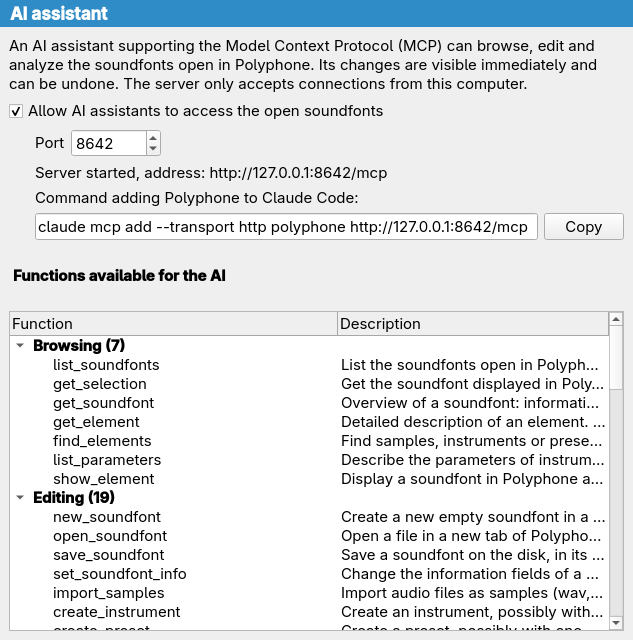
In the AI assistant section, an AI assistant supporting the Model Context Protocol (MCP), such as Claude, can be allowed to browse, edit and analyze the soundfonts open in Polyphone. Its changes are visible immediately in the editor and can be undone like any other change.
- Allow AI assistants to access the open soundfonts
- Starts the MCP server of Polyphone (disabled by default). The line below shows the state of the server and its address, for instance “Server started, address: http://127.0.0.1:8642/mcp”. The server only accepts connections from this computer.
- Port
- Port of the server, 8642 by default. Another port can be chosen if this one is already used by another program.
- Command adding Polyphone to Claude Code
- Command to run in a terminal so that Claude Code can use Polyphone. The button Copy copies it to the clipboard.
- Functions available for the AI
- List of the functions that the assistant can call, grouped in four categories: Browsing, Editing, Tools and Sound analysis. Their descriptions are the ones read by the assistant, in English.
The tutorial “Edit soundfonts with Claude” explains how to connect Claude to Polyphone and gives examples of requests.
Online repository
The email address and the password of an account can be entered here to link Polyphone with this account, a Premium account unlocking the whole online repository. After a successful connection, Polyphone is automatically connected to the account at each start, until the button Log out is used.
The directory used when downloading soundfonts from the online repository can also be changed here.

Polyphone is free but there are costs associated with its website and development. A small donation will help a lot.
Donatetop