Soundfont explorer
With Polyphone, it is possible to open a directory from the home screen by clicking the Open directory button. The soundfont explorer then opens in a tab to display the contents of that directory, presenting, for each soundfont, a preview of its content.
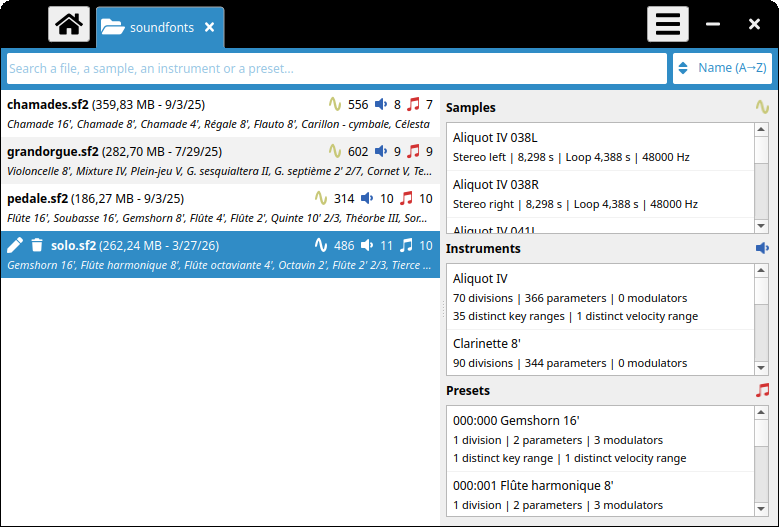
Soundfont preview
The main list, located on the left side of the interface, contains the list of files, and Polyphone distinguishes them as follows:
- compatible files that can be scanned quickly (.sf2, .sf3 and .sfz formats, for example) are displayed with details about their content,
- compatible files that cannot be scanned quickly (sfArk format, in particular) are displayed with basic information only,
- files that are not compatible are greyed out and cannot be opened.
Clicking on a scannable file displays, in the lists on the right side of the interface, the samples, instruments and presets it contains. Each item in these lists also includes information to help assess the level of detail and work put into the soundfont.
File-level details
- the size and last update date are displayed for each file,
- for soundfonts that can be scanned, the following information is added:
- number of samples, instruments and presets,
- names of the first presets.
Information for each sample
- type (mono / stereo),
- total duration,
- loop duration, if any,
- sample rate.
Information for each instrument or preset
- total number of divisions, parameters and generators,
- number of distinct key ranges,
- number of distinct velocity ranges.
Sort and search functions
The upper section features a text field. When filled in, the browser only displays files matching at least one of the following criteria:
- the name contains the searched text,
- the name of one of the samples, instruments or presets contains the searched text.
The lists of samples, instruments and presets are also filtered to highlight the matching elements.
To the right of the text field is a drop-down list that lets you sort files by name, last modified date, or file size.
File operations
When clicking on a file in the main list, 2 clickable icons appear before the file name:
- a pencil icon to rename the file,
- a trash icon to move the file to the recycle bin.
These operations allow you to quickly manage and clean up a local soundfont collection.
Opening a soundfont
Double-clicking on an item in the main list opens the file — provided its format is compatible with Polyphone — at the location configured in the settings (general information is displayed by default).
Double-clicking on a sample, instrument or preset opens the file at the selected element.
Enjoy
unlimited downloads
and unlock the
soundfont repository
in Polyphone.
top