Toolbar
The toolbar, located on the top of the editor, contains icons for:
- common editing functions,
- switching the view in editors,
- displaying the recorder,
- displaying the virtual keyboard.

Editing functions
The elements in the left part of the toolbar are for common editing functions:
 Add a sample
- Add new samples to the soundfont. A dialog will be displayed for selecting audio files (.wav, .flac, .mp3, .ogg, .aif, .aiff, .aifc and .snd files can be imported), several files being selectable at once.
 Add an instrument
- Create a new instrument. A dialog asks for the name of the instrument and, if samples are selected in the tree, offers to link them to the new instrument. In this case, stereo samples are panned to the left and to the right, the loop is enabled if all samples are looped and, when the samples have different root keys, the key ranges are automatically defined (see the tool Sample auto-positioning).
 Add a preset
- Create a new preset. A dialog asks for the name of the preset and, if instruments are selected in the tree, offers to link them to the new preset. The first available bank and preset numbers are used.
 Toolbox
- Clicking on this button will show a menu containing all available tools for the selected element(s) in the tree.
 Undo
Undo- Undo the last modification, also accessible with Ctrl+Z.
 Redo
Redo- Redo the last undone modification, also accessible with Ctrl+Y or Ctrl+Shift+Z.
 Save
Save- Save the soundfont, also accessible with Ctrl+S.
Switch view
In the right part of the toolbar, some icons may appear depending on which editor is displayed:
- switching between the
 table view, the
  range editor and the
  envelope editor is possible when editing an instrument,
 - switching between the table view and the range editor is possible when editing a preset,
- nothing displayed otherwise.
Recorder
When clicking on the icon  , a window opens showing the recorder that can record the output of Polyphone in a .wav file. The elapsed time is displayed in the window.
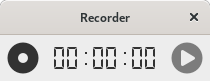
The left button can have two possible states:
- Record
- Start a new record if the acquisition is off. A dialog asks for the name of the file that will contain the recorded audio signal.
- Stop
- Stop the current acquisition. The acquisition is also stopped when the window is closed.
The right button can also have two possible states (only accessible if the acquisition is on):
- Pause
- Pause the current acquisition.
- Resume
- Resume the current acquisition.
Virtual keyboard
When clicking on the icon  , a window opens showing the virtual keyboard that has been made for testing samples, instruments and presets.
This window triggers MIDI signals:
, a window opens showing the virtual keyboard that has been made for testing samples, instruments and presets.
This window triggers MIDI signals:
- note on / note off / aftertouch with the piano keyboard,
- other MIDI signals if the MIDI controller part is expanded.
The key, the velocity and the aftertouch of the note being played are displayed at the bottom of the window, along with a drop-down list for choosing the size of the keyboard (5 octaves, 6 octaves, 88 keys or 128 keys).
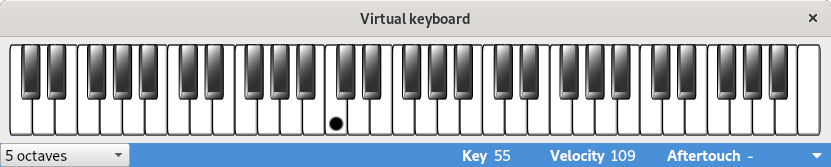
Piano keyboard
The piano keyboard triggers signals that contains key and velocity numbers. It can be controlled in three ways:
- with the mouse
- The desired key may be clicked by the mouse. The velocity is defined according to the vertical position of the click. After a click, following moves within the same key will trigger aftertouch signals.
- using the computer keyboard
- The keys used are defined in the settings.
- using an external MIDI keyboard
- The MIDI input is defined in the settings. If the piano keyboard is visible, it will show what you are playing.
Markers and colors
- When an instrument or a preset is selected, the area not covered by the divisions is grayed. It is thus possible to visualize the full range of an instrument or a preset.
- When a division of an instrument or a preset is selected, its range is displayed the same way as above. Moreover, its root key is identified by an orange marker.
- When a key is selected on the keyboard, it appears in blue (or the selection color selected in the software settings). Moreover, the range of its corresponding division appears in light blue. This applies only at the instrument level.
- Middle C (key 60) is identified by a black marker.
Useful shortcuts
- Ctrl+K
- This shortcut puts the focus on the virtual keyboard at any time (the keyboard is displayed if it was hidden). This allows, while editing in a table for instance, to use the computer keyboard to play instead of editing a cell. A glow effect on the virtual keyboard confirms that the focus is on it.
- Ctrl+1, Ctrl+2, … Ctrl+8
- These shortcuts change the octaves played with the computer keyboard. After the use of Ctrl+1, the lowest octaves can be played. The highest octaves are reached using Ctrl+8.
- → / ←
- The right or left arrow will play the pitch just above or below the last key that has been played, with the same velocity. Combined with the key Shift, 6 keys are skipped instead of 1.
- ↑ / ↓
- The up or down arrow will play the same pitch as the last key played, but with a stronger or weaker velocity. Combined with the key Shift, the velocity is changed by 10 instead of 1.
MIDI controllers
When clicking on the bottom right arrow, the MIDI controller area can be displayed or hidden. If you are playing with modulators, it is advised to use these features to test your soundfont.
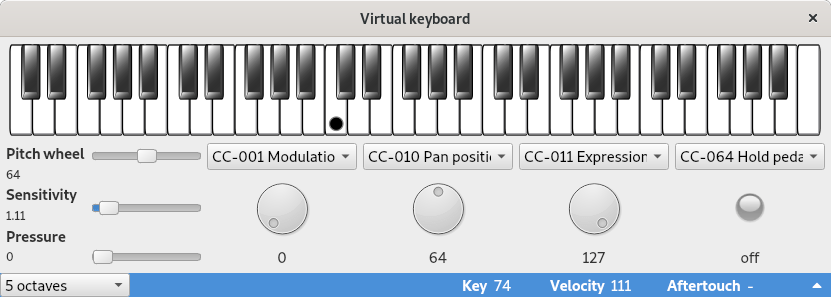
This area is made of different buttons:
- Pitch wheel
- The pitch wheel increases or decreases the pitch. It goes back automatically to the original position 0.
- Sensitivity
- The sensitivity defines the modification range in semi-tones of the pitch wheel. By default this is 2 (one full tone).
- Pressure
- The pressure is the amount of pressure on the keyboard. It can be compared to the aftertouch but while the aftertouch is key-specific, the pressure is a global signal for all keys.
- Knobs
- 3 knobs are here so that MIDI controller values can be changed. For each knob you can specify a controller number and then its value.
- On / off led
- This led is to set a MIDI controller value to 0 or 127 (useful for the sustain pedal for instance). It is like a knob but with only two possible values.
All these elements can be synchronized with a MIDI keyboard connected to the computer if the MIDI input is correctly set in the settings. Relative MIDI controller values are supported for driving the knobs.
Polyphone is free but there are costs associated with its website and development. A small donation will help a lot.
Donatetop